Your Lock Screen is a small canvas you see all day. Build around its clock, widgets and crop instead of treating a favorite picture as an afterthought.
A beautiful portrait can become a frustrating Lock Screen when its focal point sits directly behind the time. Ask for a calm upper third, move the main subject slightly lower, and avoid fine lettering. AIgenWalls offers a clock-and-widgets composition direction; use it as guidance rather than a guarantee that every image model will obey it perfectly.
Choose a tall composition, then crop.
Start with the phone composition in the studio. iPhone models use different exact pixel dimensions and many are taller than 9:16, so leave generous margins around important details. Download the original, then use the local wallpaper resizer if you need a specific canvas. A resized export changes the dimensions; it does not create new native image detail.
Make a pair that feels connected.
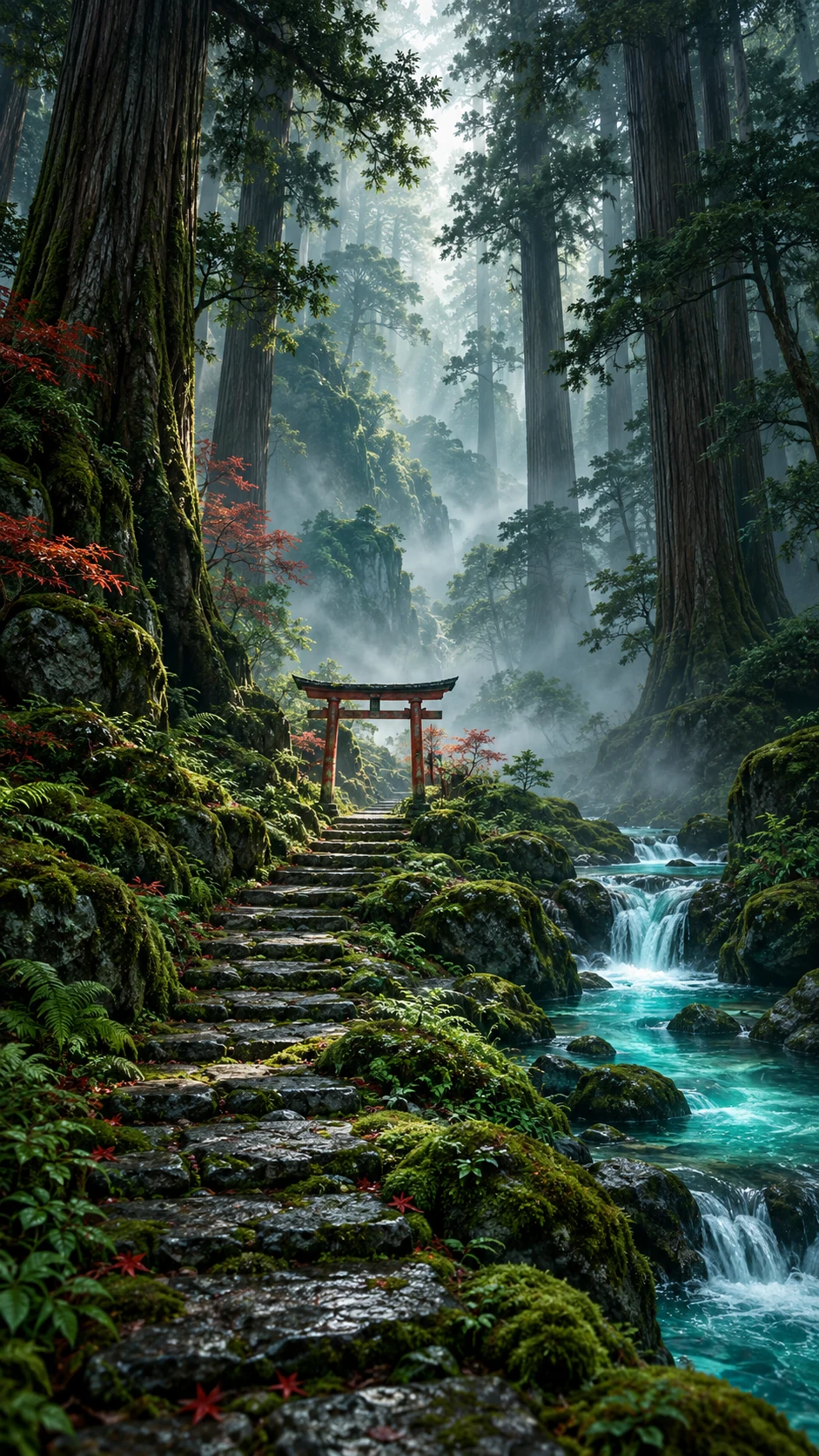
For a matching Home Screen, reuse the same palette and simplify the subject. A rich forest may suit a Lock Screen, while an abstract green gradient can keep app icons legible. Save the prompt and settings as a preset so tomorrow’s daily credits can explore another scene in the same visual family.
Ideas you can actually use
Three ways to begin.
Open a prompt, make it your own, and choose the current image model in the studio. Generating uses the credit cost shown there; preparing a prompt is free.
A starting point
A quiet cedar forest, a small red torii gate beside a turquoise stream, soft morning mist, gentle natural light, a calm open upper third for a lock-screen clock.
A quiet cedar forest, a small red torii gate beside a turquoise stream, soft morning mist, gentle natural light, a calm open upper third for a lock-screen clock. Use a simpler composition, low-contrast surroundings, and generous empty space for the screen interface.
A quiet cedar forest, a small red torii gate beside a turquoise stream, soft morning mist, gentle natural light, a calm open upper third for a lock-screen clock. Reinterpret the scene in muted warm earth colors, with one small contrasting highlight and a calm background.
A fresh allowance every day. Sign up for 5 daily free credits. Unused daily credits expire at 00:00 UTC. Purchased and previously saved credits stay available. See the daily credit rules.A few useful answers
About iphone wallpapers.
Can I make iphone wallpapers for free?
Yes. Sign up for 5 free credits each UTC day. At the standard one-credit generation cost, that can create five wallpapers. Daily credits expire at the reset; purchased and existing saved balances remain available. The studio shows the current cost.
What size should my iphone wallpaper be?
Choose a composition that matches your screen and keep essential details away from the edges. Phone models use different dimensions. Use the screen-size guide and local wallpaper resizer to prepare an exact canvas.
Can I download the image and keep it private?
Yes. Successful generations save to your private collection. Download the original or make a PNG or JPEG screen export. Publishing is optional and separate from generating or downloading.
Can I use these examples as prompts?
Yes. Each example opens in the studio as an editable prompt. Change the subject, mood, color story and composition before generating. Example artwork illustrates a direction; it is not a promise of an identical result.